
Technical Writing Sample - Contenticate
Disclaimer: Contenticate is a fictitious product created for the sole purpose of demonstrating my technical writing skills. The information here is partial and does not belong to any legal entity. The following sample includes an introduction to the user guide, and brief explanations involving two sections of the product's backoffice.
Welcome to the Contenticate User Guide
In essence, Contenticate is a platform designed to help you create, edit, and publish captivating content across the board - simplifying the entire process!
Before we proceed to the user guide, let us introduce some of Contenticate's features and functionalities:
Navigable Dashboard: It all starts here! Contenticate's user-friendly interface provides easy access to everything you need to up your content game. It's easy to handle, and it's mobile-friendly to boot!
Full-On Content Management: Say goodbye to constantly copy-pasting and moving content around. Do things straight from the platform: create, edit, and organize cross-product content before scheduling it for publication.
Hassle-Free Publishing: Schedule publication dates, select you preferred social platforms, preview things before publishing them, and publish away once the light turns green.
Analytics and Insights: What's the point of content if you don't know how well it does? Use Contenticate's tools to analyze performance and engagement rates, and integrate third-party tools to take things to the next level.
Collaboration Tools: Instead of sending things back and forth for reviews and comments from colleagues, add them to your projects using our real-time collaboration feature!
User Permissions: Prevent the "Who deleted this?" drama by assigning specific roles and permissions to users, so everyone can contribute correctly to each project.
Getting Started
Signing Up: Users can sign up for Contenticate simply by picking a username and generating a password. Any user can also sign up via an existing Google account. Once the account is created, users can then activate 2FA in their profile settings if required.
Dashboard Overview:
After creating an account and logging in, users are directed to the Contenticate dashboard. If it's their first time here, they will see pop-up instructions on where to go and what to do. These can be closed at any time and will not reappear after the first log-in.
The top right corner of the dashboard displays the user's status (online, offline), the number of unread messages marked in red, and the user's name. Clicking the arrow next to the user's name will toggle a drop-down menu which displays the following:
My Projects: The list of projects the user is working on
My Company: Displays the company to which the user belongs
Edit Company Details: Allows the user to edit the details of their company
Edit User Profile: Here, the user can customize their profile by changing their personal information, adding images, activating light/dark mode, etc.
Log Out

The column to the left side of the dashboard displays the same information available on the main page of the dashboard, in addition to the user's name, and their role.
The Build Up Your Profile section allows the user to view the number of projects they are working on, the profile of their company, as well as their own personal information which they can edit and customize.
The Content Management section allows users to create, edit, and organize content, arrange it for publication, and track the analytics after publication. This information can later be extracted as pdf and csv files in the form of reports which teams can use to further optimize the content.
The Work With Your Team section is designed to involve the user's team members in the content creation and publication cycle, as well as to uphold organic communication within the workspace. Depending on the user's permissions, they will be able to add users to the same project and assign specific roles to them.
Finally, the user can view their messages and log out from the system using the functions at the bottom of the left-side column.
Your Dashboard
Users can see a more detailed view of their capabilities in the platform in the My Dashboard page. Additionally, any new feature that is added to the platform is marked green.
Adding Users from the User Dashboard
Users can be added to projects from the Add Users and Assign Permissions section on the left column or My Dashboard page. Clicking the Add User button in the User Dashboard page will toggle a window where the new user's information can be entered, their password set, and their role assigned. Users with lower permission cannot assign roles to other users.

Adding Posts in the Content Calendar
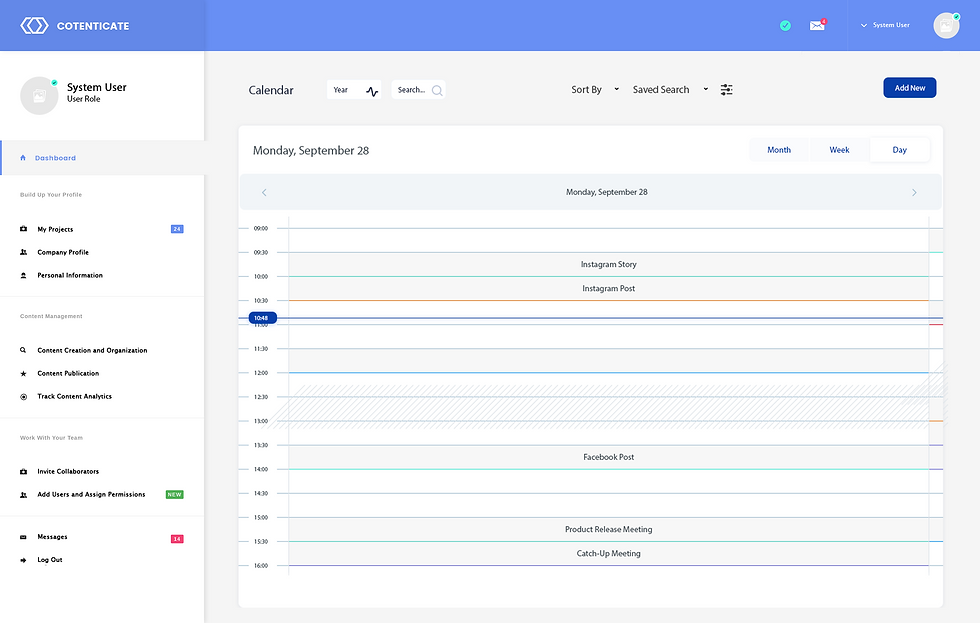
After accessing the content calendar from the My Projects section, users can add new posts either daily, weekly, or monthly. The view of the page changes depending on which option users choose. Users can also choose to display the calendar per year, sort posts by the pre-defined criteria, and view their previously saved searches.
In the Daily view, users can view hourly time slots per day and add posts accordingly using the Add New button on the top right. Each post will be underlined based on the colors previously defined by the user from the colors available in the system.
Hope you enjoyed this technical writing sample! If you want user guides created for your products, feel free to reach out to me at any time!



Comments